Two ways to send files
There are two distinct ways to provide a file to Aimee, each with different format requirements:
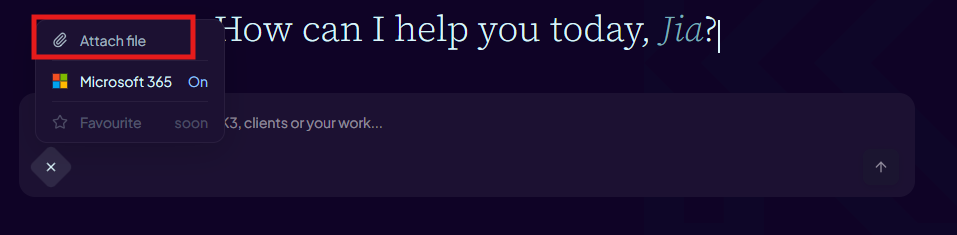
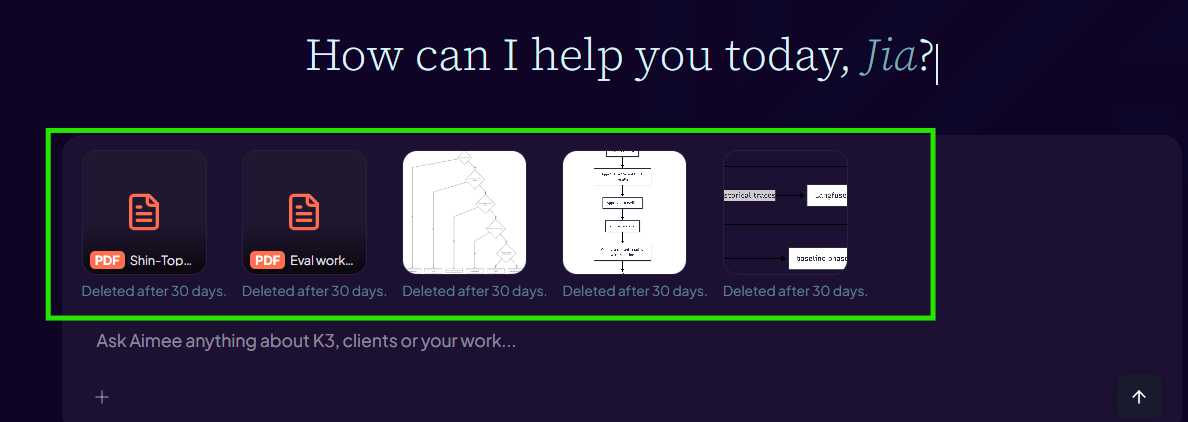
- Chat attachment (paperclip icon, drag/drop, or pasted clipboard image in the composer) — accepts up to 10 images, PDF, DOCX, XLSX, PPTX, TXT, CSV, and Markdown files per message. Use this for files you want Aimee to read or analyse in a conversation.
File size limits
- Chat attachments support up to 10 files per message, with each file up to 25 MiB and a 250 MiB total message envelope.
- Document library uploads accept one DOCX file up to 10 MB at a time.
- Pasted screenshots/images are attached automatically, and large blocks of pasted text in the chat composer may be automatically converted to a .txt attachment.
For PDF, PPTX and XLSX files above 25 MiB, Aimee may try a bounded optimisation that preserves the text, tables, data and document structure. Embedded raster images may be recompressed or downscaled to remove unnecessary full-resolution media; they are not flattened into document text. If Aimee cannot safely reduce the file below 25 MiB, the upload is rejected; contact support and include a copy of the file if possible.
How long are attachments kept?
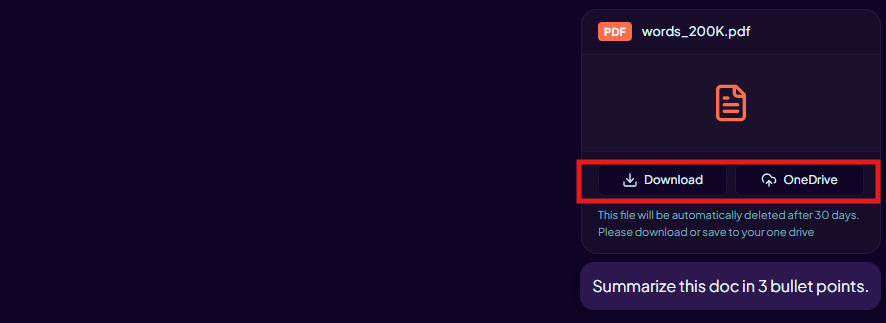
Chat attachments are stored for only 30 days of the conversation. If you delete the conversation the attached files are also removed. Documents in the document library are kept until you explicitly delete them.
To keep a copy of a file beyond the conversation, use the Save to OneDrive button that appears on the attachment chip after sending.
Who can see your attachments?
Attachments are scoped to your account. Other users cannot access your uploaded files or documents. Aimee only reads a file when you explicitly include it in a message.
Do not upload files containing highly sensitive or regulated data unless your organisation has approved this use case. Contact your administrator if you are unsure.