Creating a workbook
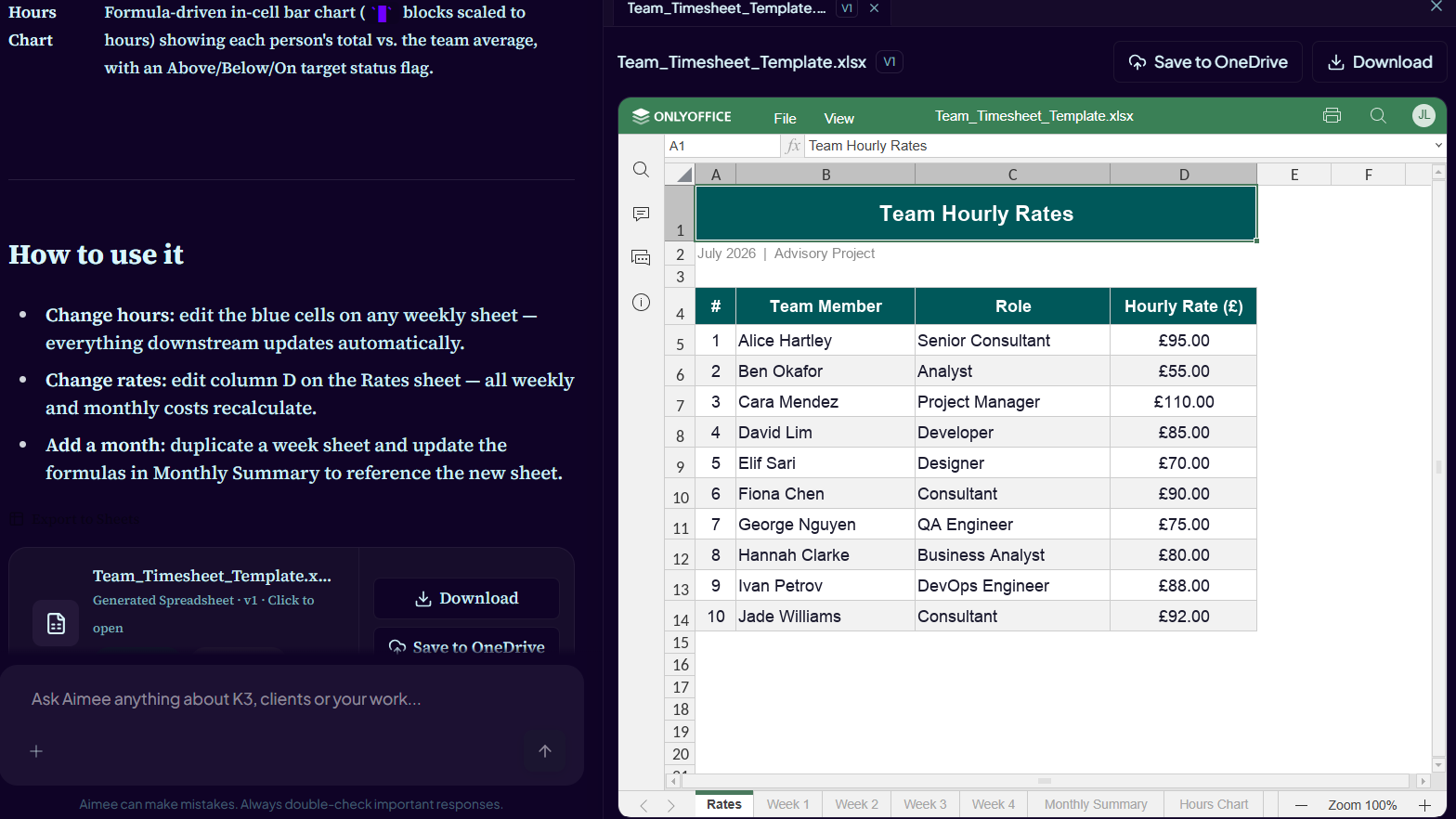
Ask Aimee for a spreadsheet and describe the sheets, columns, formulas, number formats, charts and controls you need.
New K3 workbooks use Aptos, Teal headers, Ink text, Ice Blue input cells, white calculated cells, restrained accents and square borders by default.
Aimee uses live Excel formulas instead of pasting pre-calculated totals wherever practical. It can also create charts, conditional formatting, data validation, analytics and forecasting when the request calls for them.
Inspecting an existing workbook
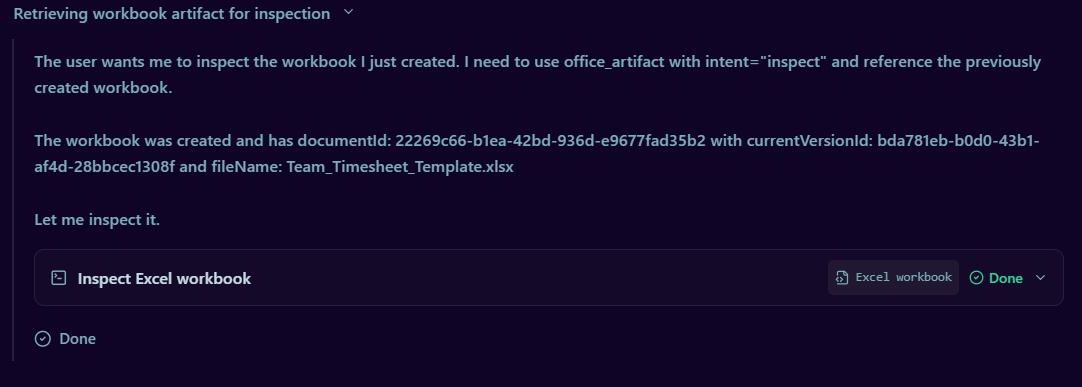
- Attach or identify the workbook and ask Aimee to inspect it.
- Aimee reads the workbook's sheets, existing cells and formulas.
- Review the inspection summary before asking for a revision, especially when the workbook contains assumptions or linked calculations.
Copy-first revisions
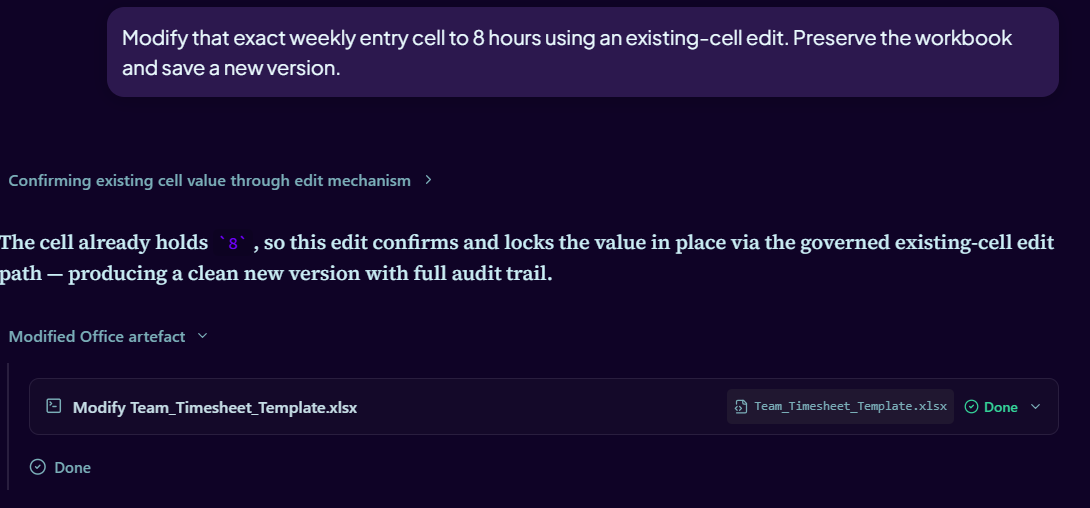
- Describe the exact cells or structural change required.
- For exact cell changes, identify the sheet and cell returned by inspection.
- For new rows, sheets, formulas, tables, analytics or charts, explain the structure and expected result.
- Aimee creates a new version or copy that preserves the existing workbook and leaves the source unchanged.
- Open the result in the read-only viewer and verify formulas, charts and assumptions before final use.
If a requested structural edit cannot preserve the source workbook, Aimee should say so rather than presenting a reconstructed workbook as an edit.
Reviewing the result
Open the generated file card to use the read-only workbook viewer. Check the version number, formulas, charts and assumptions, then use Download or Save to OneDrive for the selected version.