What Aimee can do
Aimee can create, inspect and revise Word documents, Excel workbooks and PowerPoint decks. Ask for the file type and outcome you need, and include the intended audience, content, structure and any source files that should be used.
- Word — create structured DOCX files, inspect their text and tables, and propose tracked changes that you can accept or reject.
- Excel — create styled XLSX workbooks, inspect sheets and formulas, and revise an existing workbook as a new version or confirmed Microsoft 365 edit.
- PowerPoint — create K3-styled PPTX decks, inspect slide content, and revise or re-template a supplied deck as a new copy.
A generic Office export action is not currently available. Use the file card's Download or Save to OneDrive action where offered.
From request to finished file
- Describe the Office file you need and provide any source material.
- Aimee plans the file and generates it using the appropriate Word, Excel or PowerPoint workflow.
- The file passes automatic package and layout quality checks before it is stored.
- Aimee saves the result as a versioned file and shows a file card in the conversation.
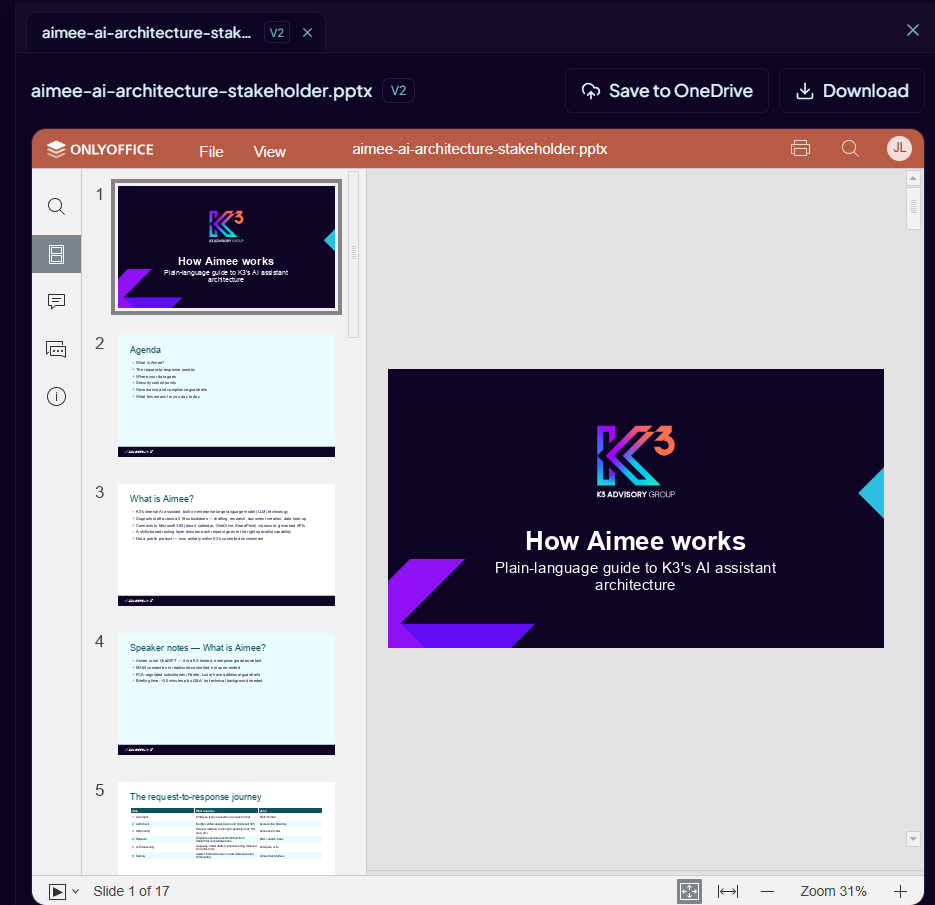
- Open the card to review the read-only preview, then download the file or save it to OneDrive.

Always review generated content, formulas, assumptions and slide layouts before using the file as a final business deliverable.
Understanding the file card
- The filename and file-type icon identify the generated document, workbook or presentation.
- The version label (for example, v2) identifies the exact saved revision, as shown on the image above.
- Validated means the automatic checks passed. Validated with warnings means the file was saved but you should review the validation summary.
- Preview ready means the file can be opened in Aimee's read-only viewer.
- K3 template identifies a file produced from an approved K3 template.
- Download saves a local copy. Save to OneDrive copies the selected version to your personal OneDrive.
Following generation progress
The Office activity card shows the work in progress. Expand it to see steps such as planning, generating, verifying and saving. Its status changes from Running to Done, Failed or Confirmation required. Advanced generation may also show the script and output in a side panel.
If Aimee corrects a temporary generation or validation problem and succeeds on a later attempt, the earlier attempt may be shown as retried rather than as a final failure.


Finding your files
- Open the Files panel in a conversation to see generated Artifacts and your uploaded Content for that conversation.
- Open Documents from the sidebar to browse versioned Office files managed by Aimee.
- Open a generated file card to review that version in the read-only viewer.
- Use Save to OneDrive when you need a copy outside Aimee.
Revisions are copy-first
Aimee normally revises an Office file by creating a new version or copy, leaving the source unchanged. It only changes an original Microsoft 365 file when you explicitly request that outcome and confirm the persistent edit in the action card.